

Have you ever needed to set up analytics right away so you could move on to launching advertising campaigns, while the client or developer still had not installed Google Tag Manager on the site? With GTM Injector, you do not have to wait for GTM to be implemented.
The problem GTM Injector solves
This module lets you locally simulate GTM installed on a site: connect a selected container and run the tags configured in it in your own browser as if the container code had already been added to the site. You can test events, conversions, and data transfers in advance, continue setting up paid advertising or other marketing tasks, and keep working despite delays in installing the code.
What you need before you begin
- PPC Tools Extension installed and enabled;
- Chrome 138 or newer;
- the “Allow user scripts” toggle enabled for the extension;
- the GTM ID of the required container in the
GTM-XXXXXXXformat; - a site domain that you are authorized to test.
In Chrome 138 and newer, the User Scripts permission must be enabled separately for each extension.
How to enable User Scripts in Chrome
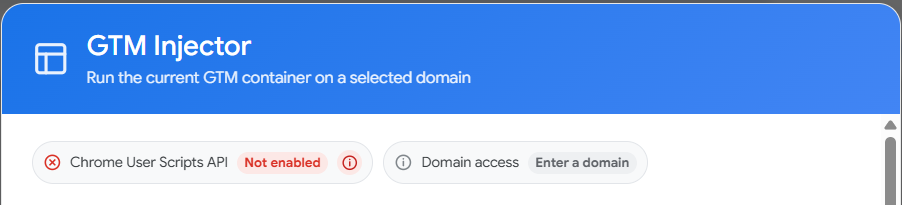
If the module shows “Chrome User Scripts API — Not enabled”, open chrome://extensions, find PPC Tools Extension, click “Details”, enable “Allow user scripts”, then return to Google Tag Manager and reload the tab. You can read more about how this works in the official Chrome documentation.


How to connect a GTM container
- Open Google Tag Manager. A “GTM Injector” button should appear on the horizontal toolbar next to the container ID.
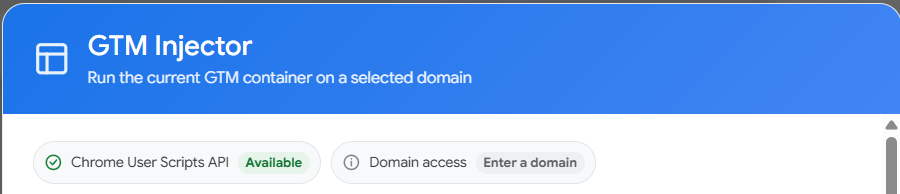
- Click “GTM Injector” and check the Chrome User Scripts API status. If you see the red “Not enabled” status, first enable User Scripts in Chrome. If “Available” is highlighted in green, continue to the next step.
- Check the value in the “Current GTM container” field. The module tries to detect the container automatically. If it is not found or you need to test a different container, enter its ID manually in the
GTM-XXXXXXXformat. - Next, enter the client site’s domain, for example
example.comorhttps://example.com/. - Choose whether to activate the configuration immediately after saving and apply it to subdomains.
- Confirm that the container belongs to you or your client and that you authorize it to run on the specified domain.
- Click “Confirm and save.”
- Approve Chrome’s request for access to the specified domain. If subdomains are enabled, Chrome will request the corresponding access separately.
- Open or reload the client site.
- Check the launch indicator, then connect to the site through GTM Preview and Tag Assistant.
If Chrome access was not granted, the configuration cannot be activated. Check the domain, save the configuration again, and approve the browser’s permission request.
Core features
Automatic GTM ID detection and manual entry
When you open the module, it automatically detects the current container’s GTM ID and fills in the corresponding field. If the ID cannot be detected or you want to connect a different container, enter the required ID manually in the GTM-XXXXXXX format.
Check the selected ID before saving. After changing it, you will need to confirm the container and domain again.
Separate configurations for different sites
Each domain has its own saved configuration: GTM ID, confirmation, active state, paused state, and subdomain setting. This lets you work with multiple projects without changing a single shared entry before every test.
Subdomain support
The “Enable subdomains” option adds permitted patterns for the main domain’s subdomains. For example, a configuration for example.com can also be used on shop.example.com. Chrome displays a separate permission request, so enable this option only when subdomains are actually within the scope of your test.
Pause, resume, edit, and delete
You can pause, resume, edit, or delete a saved configuration. Pausing temporarily unregisters the launch while preserving the settings. Deleting removes the configuration and revokes domain access that is no longer needed.
The change applies to subsequent page loads. If the container is already running in an open tab, reload that tab after pausing or deleting the configuration, or after disabling the module.
General module settings
Three default options are available on the PPC Tools Extension settings page:
- “Activate after saving” — register a new configuration immediately after confirmation;
- “Enable subdomains” — offer to include subdomains for new configurations;
- “Show launch indicator” — add a local status indicator to the site being tested.
The first two options set the initial state for new domains. They do not overwrite existing saved configurations.
Local launch indicator
After you open a configured site, the module checks whether the selected container’s loader appears. When it is detected successfully, a badge labeled “PPC Tools · GTM-ID” appears.
Security and data storage
GTM Injector does not accept arbitrary user-provided JavaScript. The loader is built from fixed logic included in PPC Tools Extension; the user selects only the GTM ID to test, the domain, and the launch options.
Chrome access is requested only after an explicit user action and only for the specified domain. Client sites are not included in the module’s mandatory permanent access list, and subdomains are added only when the corresponding option is enabled.
GTM Injector domains and configurations are stored locally in the extension’s data and are not sent to PPC Tools servers. General module settings may be stored in Chrome’s synchronized storage if browser sync is enabled. When the container runs, the page itself requests Google Tag Manager resources, which is necessary to load the selected container.
The implementation uses Manifest V3, user confirmation, and the Chrome User Scripts API. These technical measures reduce the need for permanent permissions, but they do not remove the user’s responsibility for the selected container, the domain, or the data processed by its tags.
Important considerations
- the container runs only in the current user’s browser with PPC Tools Extension installed and configured;
- the module does not change the site’s code and does not replace a permanent GTM installation;
- after pausing, deleting, editing, or disabling a configuration, you need to reload the page;
- a container that is already running cannot be universally removed from an open page without reloading it;
- JavaScript must be enabled;
- the module runs the GTM JavaScript loader but does not add the container’s
<noscript>version; - the green indicator does not confirm that every individual tag is working;
- the user is responsible for having the right to use the container on the selected domain and for complying with data and visitor-consent requirements.
FAQ
Will GTM be installed for every visitor to the site?
No. The container runs only in your browser, where PPC Tools Extension is installed and configured. Other visitors to the site do not receive this connection.
Does the module change the site’s code or files?
No. GTM Injector does not edit the site’s templates, files, database, or server. The connection is created locally by the browser extension.
Why does Chrome request access to the domain?
Without permission, the extension cannot run the registered script on the client site. The request appears after saving and applies to the specified domain; subdomains are requested separately when they are enabled.
Why is the Chrome User Scripts API shown as disabled?
In Chrome 138 and newer, open chrome://extensions, click “Details” for PPC Tools Extension, and enable “Allow user scripts.” Then reload the Google Tag Manager tab.
How can I tell whether the container is actually running?
Check the indicator’s green checkmark, look for a gtm.js?id=GTM-... request in the Network tab, and confirm that the correct container is detected in GTM Preview / Tag Assistant.
Does the green checkmark guarantee that every tag has fired?
No. It confirms that the selected container’s loader and object were detected. Check individual tags in GTM Preview, Tag Assistant, Network, and other diagnostic tools.
Can GTM Preview detect the container?
Yes. When the connection is working correctly, Tag Assistant should detect the selected container on the page being tested. Confirm this for the specific site and container during your test.
Where are domains and configurations stored?
They are stored locally in PPC Tools Extension data and are not sent to PPC Tools servers. General default settings may be synchronized by Chrome when browser sync is enabled.
What happens after I pause or delete a configuration?
The registration stops applying to subsequent page loads. You need to reload a site that is already open because a running container cannot be universally removed from the current document.
Can I use the module instead of installing GTM permanently?
No. GTM Injector is intended for local testing and diagnostics. To run tags for actual visitors, install the container on the site using the standard method.
